How to Switch Phones Safely — Transfer Data Without Losing Privacy
A secure phone switch is not just a copy operation. It is a controlled handover of photos, messages, passwords, authentication methods, private folders, and account access from one trusted device to another.
Back up the old phone, update both devices, use the manufacturer’s setup transfer with a cable when available, and move security-sensitive items separately. Verify photos, messages, authenticator codes, locked folders, banking apps, eSIM service, and recovery keys before you erase or trade in the old phone.
In this guide
Phone Transfer & Switch: the secure way to think about migration
The safest transfer is one you can verify. Your goal is not to make the new phone look familiar as quickly as possible. Your goal is to copy only the data you intend to keep, preserve access to important accounts, and leave no readable personal information on the old device when the handover is complete.
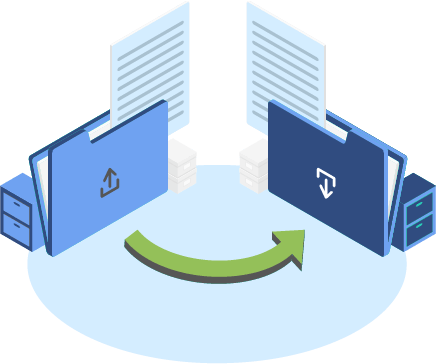
How to switch to a new phone without missing the security steps
iPhone to iPhone
Use Quick Start or an encrypted computer backup. Keep both phones powered, nearby, updated, and connected until the new device finishes indexing and downloading cloud content.
Android to Android
Use the setup copy flow. A cable is usually the most complete option. Sign in to the same Google Account, select what to copy, then review app-by-app sign-ins.
iPhone to Android
Use the Android setup flow or the new phone maker’s migration app. Turn off iMessage after confirming texts are arriving on the new phone.
Android to iPhone
Use Apple’s Move to iOS during initial setup. If setup is already complete, decide whether a reset is worth it or move smaller data sets manually.
When a transfer stalls, skips files, or finishes with gaps
Do not erase the old phone. Check free storage on the new phone, update both devices, disable low-power modes, use a known-good cable, and repeat the copy for missing categories. Some apps deliberately do not transfer their private data and require a fresh sign-in or an in-app export.
Cable, QR pairing, cloud backup, or manufacturer app?
A direct cable transfer gives the smallest exposure window and is often the most complete. QR-based wireless pairing is convenient and protected by device authentication. Cloud restore is useful when the old phone is unavailable, but it depends on what was backed up and adds a cloud-storage trust layer. Manufacturer apps can transfer more device-specific settings, but protected app containers still need separate checks.
See the full transfer security matrix →How to transfer data from a locked phone
Legitimate transfer tools require the old phone’s screen lock, account credentials, or a previously created backup. If you own the phone but cannot unlock it, use the platform’s official account recovery, a trusted-device session, carrier help for the phone number, or an existing backup. There is no safe universal method to break a phone lock without risking data loss or unauthorized access.
See owner-safe recovery options →Choose the risk that matters most in your switch
The right method changes depending on whether you still control the old phone, whether you are changing platforms, and whether private containers or security credentials are involved.

I have both phones
Use a direct setup transfer, keep the old phone untouched, and compare key data categories before wiping.
Lowest migration riskI am changing platforms
Expect some app data, purchases, message formats, and settings not to map cleanly between iOS and Android.
Plan app-by-appI use locked folders
Confirm backup settings and transfer support before assuming protected photos or Secure Folder content will follow.
Separate verificationI lost access to the old phone
Restore from an existing backup and recover accounts through official channels. Do not use lock-bypass tools.
Recovery firstData Transfer Security: native methods, backups, and manual moves
Built-in setup tools are usually the best starting point because they bind the transfer to device authentication and account ownership. The mistake is treating them as complete coverage for every protected app and private container.
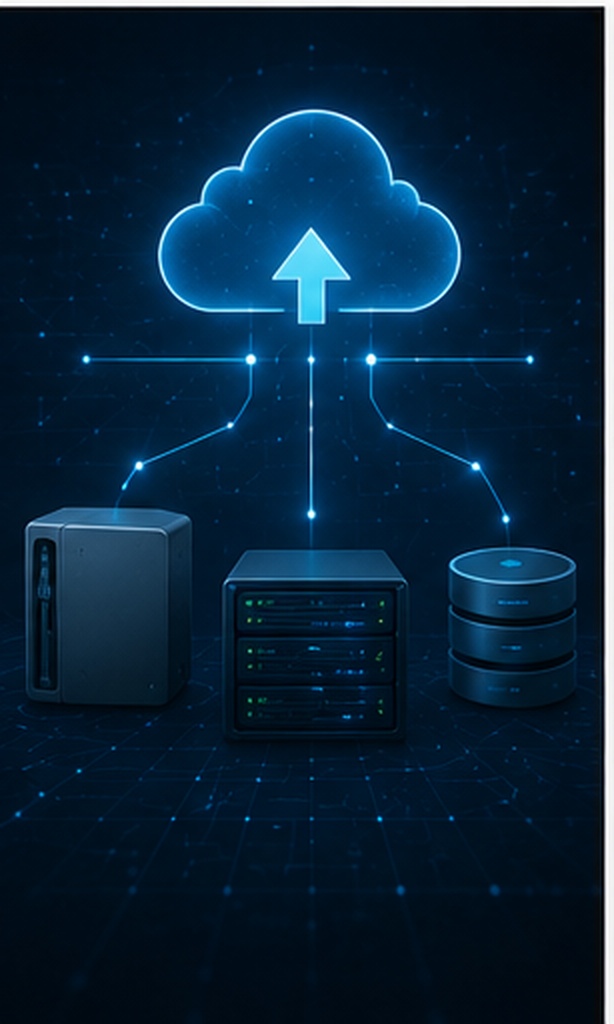
Method 1: Use the built-in OS transfer
Start the new phone and choose the option to copy from the old device. Authenticate on the old phone, pair the devices, and select the categories you want. A direct cable generally reduces transfer time and keeps the copy within the two devices.
Prepare
Update both phones, charge them, confirm Wi-Fi, and make one current backup before beginning.
Pair and authenticate
Use the on-screen QR code, proximity prompt, or cable. Confirm matching codes and unlock the old phone yourself.
Select deliberately
Copy contacts, messages, photos, call history, and compatible apps. Skip clutter you no longer need.
Verify before erase
Open representative files and security apps on the new phone while the old phone remains available.
Most same-platform switches and supported cross-platform moves.
Private app databases, downloads, authenticators, locked folders, and some chat histories may not transfer.
Method 2: Restore from an encrypted backup
Use a cloud backup when the old phone is unavailable or a local computer backup when you want more control. On iPhone, an encrypted computer backup can preserve additional protected categories, but its password must be stored safely. On Android, restore coverage depends on the apps and settings included in the Google backup.
Replacement after loss, damage, or trade-in, and for creating a fallback before direct transfer.
Cloud restores need account access and network time. Local encrypted backups are unrecoverable if you lose their password.
Method 3: Use the manufacturer’s migration app
Samsung Smart Switch and similar tools can move device-specific data and settings that a generic platform transfer may miss. They are useful when the destination phone has a well-supported migration path from your old model.
Enable any available transfer authentication setting. When using external storage, encrypt the backup instead of leaving it readable on a USB drive or memory card.
Moving into a Galaxy device or another ecosystem with a dedicated migration utility.
Support varies by region, model, app, and protected storage type. Read the destination maker’s current transfer notes.
Method 4: Move selected files manually
Manual export is appropriate when you want data minimization, need an auditable folder structure, or cannot use the automated migration flow. Copy only the files you need to an encrypted computer folder, encrypted external drive, or a trusted cloud account with strong authentication.
Remove the temporary copy after verifying the new phone. A plain USB flash drive can become the weakest link if it is lost, borrowed, or left connected to a shared computer.
Sensitive documents, selective migration, and users who want a clean start.
Slow, easy to overlook metadata or app-specific databases, and risky if temporary copies are not encrypted and deleted.
How to sync iPhone, Android, and Samsung phones during a switch
How to sync old iPhone to new iPhone
Use Quick Start while both devices are nearby, connected to power, and able to authenticate. Choose a direct device-to-device transfer or restore from iCloud. If you use a Mac or PC backup, enable encryption when you need protected categories such as Health data.
After setup, check iCloud Photos status, Messages, Notes, passwords, Apple Pay cards, eSIM service, and any app that uses end-to-end encryption. A successful setup does not mean every cloud library has finished downloading.
How to sync Samsung phones
Open Smart Switch on the new Galaxy phone, choose Receive data, select the old device type, and connect wirelessly or by cable. Select only the content you want and keep both devices unlocked and powered until completion.
If Secure Folder is present, choose a transfer option that supports it and be ready to unlock the protected space on the old phone. If your model or regional support page gives different guidance, follow the current device-specific instructions.
How to switch to Android from iPhone
During Android setup, choose iPhone or iPad as the source and follow the QR or cable flow. A cable often transfers more categories. After the move, confirm texts arrive on Android and deregister iMessage if needed.
iCloud-only photos may need a separate cloud transfer. Paid apps do not automatically become purchased Android apps, and some app data cannot cross platforms.
How to sync Android phone to iPad
An iPad is not a full destination for Android phone settings. Sync shared categories through account-based services such as contacts, calendars, mail, and cloud photo libraries. Move documents through a trusted cloud provider or encrypted local copy.
Do not expect SMS history, Android app data, launcher settings, or device credentials to appear on an iPad through ordinary sync.
How to Transfer Secure Folder to New Phone Using Smart Switch
Treat Secure Folder as a separate protected environment, not as an ordinary photo folder. Transfer support and the exact flow can vary by Galaxy model and software version, so verify the current Samsung instructions for both phones.
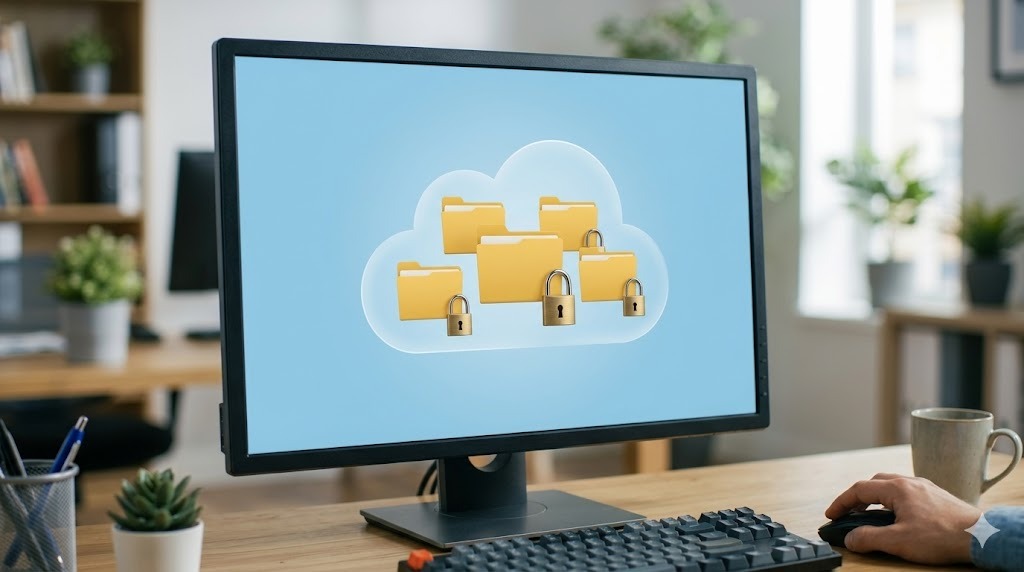
Update and unlock both Galaxy phones
Install current system and Smart Switch updates. Confirm that you can open Secure Folder on the old phone with your own credentials.
Start Smart Switch on the new phone
Choose Receive data and connect the phones by cable or the supported wireless method. A cable is preferable for large libraries.
Select the protected content when offered
If the transfer flow includes Secure Folder, choose it and complete the owner-authentication prompt on the old phone. Do not hand the unlocked device to another person.
Open Secure Folder on the new phone
Confirm representative photos, documents, and apps are present before removing anything from the old phone.
How to move Google Photos Locked Folder to a new phone
When Locked Folder backup is on
Sign in to the same Google Account on the new phone, open Google Photos, and set up Locked Folder. Backed-up protected items should become available after authentication and synchronization. Leave the old phone untouched until you verify them.
When Locked Folder backup is off
Items may exist only on the old device. Before switching, either enable Locked Folder backup or move the items out of Locked Folder, transfer them through a protected method, and place them back into Locked Folder on the new phone.
Google Photos Locked Folder on iPhone
Google Photos supports Locked Folder on iPhone. It uses Face ID, Touch ID, or the device passcode for access. You can move selected photos and videos into it and choose whether to back them up. Related copies, edited versions, and already-shared items are not automatically moved with the selected file.
Authenticator app: how to move to a new phone
Authenticator codes are not ordinary app data. Move them while you still control the old phone, and preserve backup codes for important accounts before the device leaves your possession.
Google Authenticator transfer
- Install Google Authenticator on the new phone.
- On the old phone, open the transfer or export accounts option.
- Authenticate, select accounts, and generate the QR code.
- On the new phone, choose import accounts and scan the code.
- Test a code on one low-risk account, then confirm your highest-value accounts.
Other authenticator and password manager apps
Some apps sync an encrypted account vault; others require an export, recovery phrase, or re-enrollment on every website. Check the app’s own migration process. Do not photograph QR setup codes or leave unencrypted exports in Downloads.
For work accounts, your organization may require administrator approval or a new device registration.
How to Transfer Data from a Locked Phone
A screen lock is designed to prevent data extraction without authorization. Safe recovery depends on proving ownership through the phone account, an existing backup, a trusted device, recovery credentials, or the manufacturer’s support process.

You know the account password
Restore the latest cloud backup to the new device. The old device PIN may still be requested to decrypt certain backed-up settings.
You have a trusted device
Use the already signed-in computer, tablet, or browser session to review account recovery methods and backup status.
You lost the phone number
Ask the mobile carrier to restore the number or issue a replacement SIM or eSIM after identity verification.
If no backup exists and official recovery cannot restore access, data may be unrecoverable. Do not factory reset the old phone until you have exhausted legitimate recovery and support options.
Transfer method security: cable vs QR vs cloud backup vs manufacturer app
Showing every transfer method.
| Method | Difficulty | Security | Cost | Best for | Limitations |
|---|---|---|---|---|---|
| Direct cable | Easy to moderate | High when both devices are trusted | Usually free | Complete same-platform transfer | Needs compatible cable or adapter; protected apps still require review |
| QR or wireless pairing | Easy | High with code matching and device authentication | Free | Convenient nearby transfer | Slower for large libraries; interruptions can create gaps |
| Cloud backup restore | Easy | Good with strong account security | May require storage plan | Lost, damaged, or unavailable old phone | Only restores what was backed up; adds cloud-account dependency |
| Manufacturer migration app | Easy to moderate | Good when official and updated | Free | Device-specific settings and ecosystem moves | Coverage varies by model, region, and protected storage |
| Manual encrypted copy | Advanced | High when temporary storage is encrypted | May require storage | Selective moves and audits | Time-consuming and easy to omit app-specific data |
| Built-in transfer plus separate security checklist | Moderate | Highest practical confidence | Usually free | Most people switching phones | Requires deliberate verification before wiping the old phone |
| Verdict: use the destination phone’s official setup transfer, prefer a direct cable when practical, and handle authenticators, locked folders, banking apps, eSIM, and recovery keys as separate tasks. | |||||
Use Folder Lock after the main phone transfer, not instead of it
Native setup tools remain the right way to move accounts, messages, apps, device settings, and service activation. Folder Lock is useful for the smaller set of photos, documents, audio, notes, passwords, and financial records that you deliberately place inside a protected workspace.
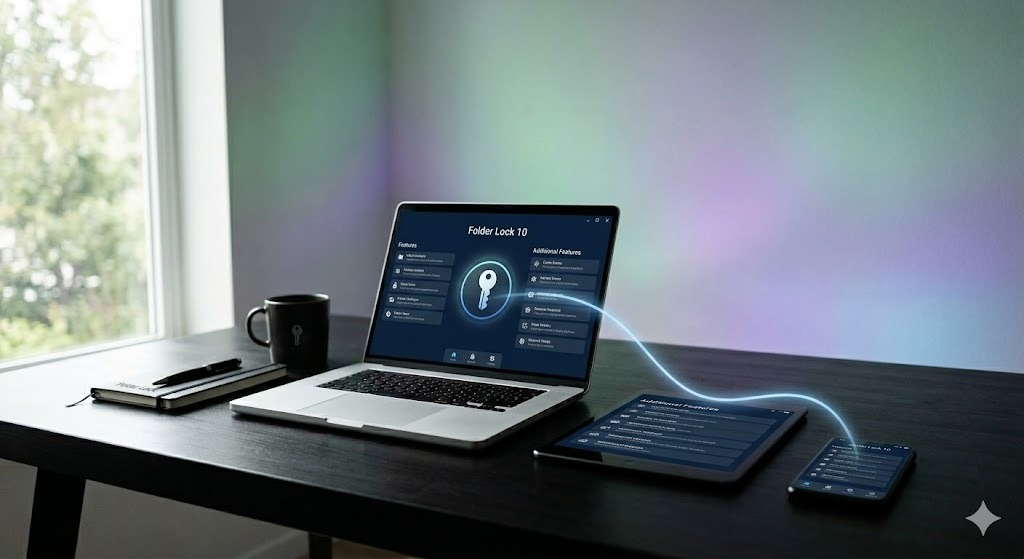
The product family is not identical on every platform. Desktop editions emphasize encrypted local and cloud lockers, while the mobile editions provide private content categories and mobile-specific controls. That difference matters when planning a switch.

Private files separated from the general phone copy
Transfer Vault
Identity records, private media, recovery material
Concept illustration. Confirm the exact interface and feature set for your platform before relying on it.
Which Folder Lock edition fits a phone-switching workflow?
Choose the edition by the device holding the sensitive files. A feature available on one platform should not be assumed to exist on another.
Private mobile content plus app-level controls
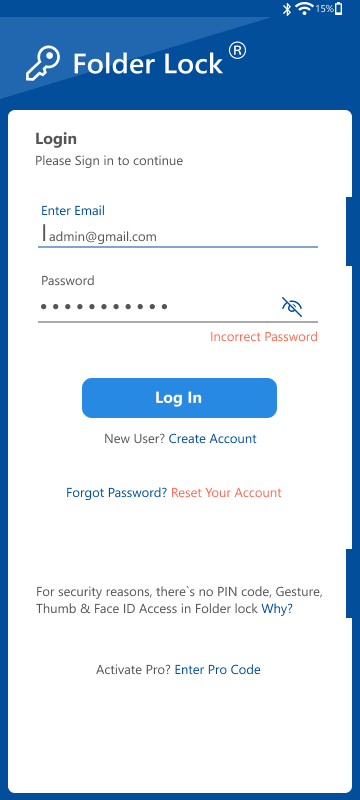
- Organizes selected photos, videos, documents, audio, notes, credentials, and wallet records inside the app.
- Can synchronize protected data through supported cloud accounts and open compatible encrypted content on other supported devices.
- Adds Android-specific app locking, private browsing, and access-attempt records.
Switching note: reinstall the official app, sign in with the same account, restore supported synchronized content, and set up app locks again. Normal Android migration does not guarantee that vault contents or app-lock rules will be rebuilt.
A private vault with computer-assisted Wi-Fi movement
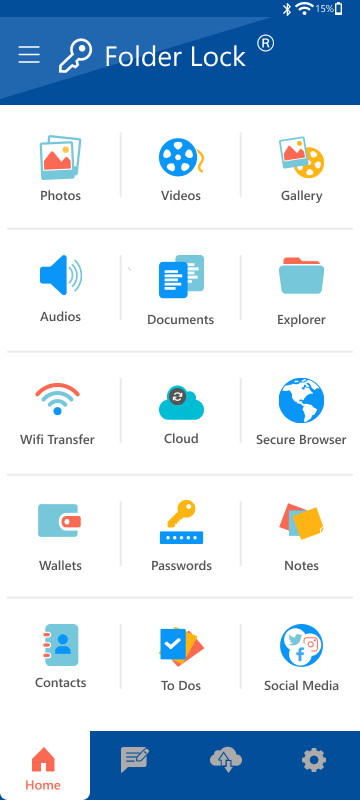
- Stores chosen media, files, audio, notes, credentials, and wallet information behind the app’s login.
- Supports encrypted cloud synchronization for protected content on compatible services.
- Includes a browser-based Wi-Fi route for moving supported files between an iPhone or iPad and a computer on the same trusted network.
Switching note: treat Wi-Fi transfer as a selected-file workflow, not a phone clone. Keep the source copy until the destination files open correctly.
Encrypted staging, cloud lockers, and portable copies

- Creates AES-256 encrypted lockers for local files and supported cloud folders.
- Supports synchronized access and controlled sharing where the receiving user also has compatible Folder Lock software.
- Includes Windows-only safeguards such as folder hiding, portable lockers, secure deletion tools, and privacy-history cleanup.
Switching note: useful for preparing a limited encrypted archive before changing phones. It does not move mobile apps, text messages, device settings, eSIM details, or authenticator enrollment.
Desktop and cloud encryption without the Windows safeguard module
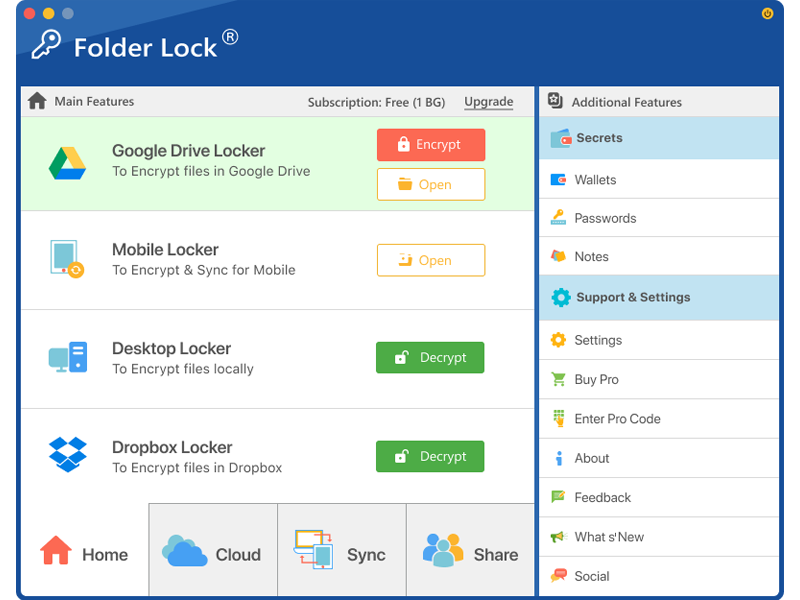
- Provides local lockers and separate encrypted spaces connected to Dropbox, Google Drive, and OneDrive.
- Supports cross-device synchronization, sharing, and protected notes, passwords, and wallet-style records.
- The Mac edition follows the locker model but does not include the Windows-only Safeguard feature set.
Switching note: use it as an encrypted desktop checkpoint for selected files. Confirm that the new Mac meets the operating-system requirement before moving or removing the old installation.
A controlled path for the files that deserve separate handling
The strongest use case is not “move everything.” It is to identify a small high-risk set, place it in the correct protected container, move it through a supported route, and prove that recovery works before deleting anything.
Classify
Separate identity documents, financial records, recovery codes, private media, notes, and credentials from ordinary phone content.
Reduce exposureChoose the right container
Use a mobile vault for phone-held content or an encrypted desktop locker when a computer is the safer staging point.
Platform mattersSynchronize or transfer
Use supported encrypted cloud access, iOS Wi-Fi movement, or a desktop encrypted archive rather than an unprotected Downloads folder.
Avoid plain copiesRebuild controls
Reapply Android app locks, confirm mobile vault categories, and review sharing permissions on the destination device.
Settings may not followProve recovery
Open samples, compare totals, confirm credentials, and retain an independent backup until the new setup survives a restart and sign-in test.
Verify before eraseHow to protect selected transfer files using Folder Lock
Install the edition made for your platform
Use NewSoftwares.net, Google Play, or Apple’s App Store. Check the platform label carefully because Android, iOS, Windows, and macOS do not expose the same tools.
Protect the account and recovery details first
Choose a unique credential, verify the recovery email or account method offered by that edition, and save purchase or registration details away from the phone being replaced.
Create a limited migration set
Add copies of only the records that need extra privacy. Keep an independent, recoverable backup until the new device has been fully checked.
Use the supported movement route
For synchronized vault content, sign in with the same authorized account. On iPhone or iPad, Wi-Fi transfer can move supported files through a computer on a trusted local network. On desktop, use an encrypted locker rather than a plain staging folder.
Reconfigure platform-specific controls
Set up Android app locks again, review shared-user permissions on desktop, and confirm that cloud-linked lockers point to the intended account.
Test, reconcile, and remove temporary copies
Open representative files, compare item counts, test access after a restart, then clear unencrypted exports from Downloads, browser upload folders, removable media, and cloud staging locations.
What changes the security of a phone transfer

A transfer is safer when the old phone must be unlocked, both devices display a matching code, and the destination account is authenticated. These checks reduce the chance of accidentally pairing with the wrong device.
Direct transfers protect data while moving between trusted devices. Cloud restores depend on the provider’s transport and storage protections plus the strength of your account. Temporary computer or USB copies need their own encryption.
Mobile operating systems isolate app data. That is why copying the visible app icon does not necessarily copy the private database behind it. Banking, authenticator, encrypted messaging, and locked-folder apps often require reauthentication or a dedicated migration action.
Keep USB debugging off unless you are actively using an authorized development workflow. When connecting to an unfamiliar charger or computer, choose charge-only mode if available and do not approve data access prompts you did not initiate.
Sign out or remove activation locks only after confirming the new phone. Then use the operating system’s factory-reset process. A simple manual deletion is not enough because synced accounts, cached data, and app containers may remain.
Folder Lock, Folder Protect, Folder Lock Lite, and built-in secure storage
Folder Lock
Best use: selected private content on mobile and encrypted local or cloud lockers on desktop.
Transfer value: supported protected data can be synchronized or moved through platform-specific routes.
Limit: it is not a complete phone migration system, and feature availability differs by operating system.
Folder Protect
Best use: controlling whether Windows files, folders, drives, programs, or selected file types can be seen, opened, edited, or deleted.
Transfer value: helps protect data left on a Windows computer while a phone switch is underway.
Limit: access restriction is not the same as an encrypted cross-platform transfer container.
Folder Lock Lite
Best use: a simpler Windows workflow for hiding or locking local folders.
Transfer value: limited, because the Lite edition does not provide encrypted lockers.
Limit: do not use it as the sole protection for sensitive files copied to removable media or cloud storage.
Built-in locked storage
Best use: Secure Folder, Locked Folder, locked notes, and other controls integrated with the phone.
Transfer value: convenient within the same ecosystem when the vendor explicitly supports migration.
Limit: protected content may be local-only or excluded from cross-platform transfers.
General cloud storage
Best use: ordinary files that need easy access on many devices.
Transfer value: simple account-based restore without keeping both phones together.
Limit: link sharing, account takeover, and permissive folder access can expose sensitive content.
Check your phone-switching risk before you begin
Complete the tools below on your own device. Answers stay in your browser and are not submitted anywhere.
Personal data risk score calculator
Choose Yes when the statement is true.
Privacy settings audit guide
0 of 10 completed
Device and platform compatibility checker
Data breach impact estimator
This is an educational estimate, not a prediction of financial loss.
Privacy tool recommendation quiz
How a careless phone handover can become a data breach
Select a stage to see where prevention is easiest.
Keep the old device, temporary storage, and transfer accounts under your control. Verify the reset and remove the old phone from trusted-device lists.
Troubleshooting phone switching and data transfer
| Problem | Likely cause | Safe fix |
|---|---|---|
| The new phone cannot find the old phone | Bluetooth, Wi-Fi, cable, permissions, or setup state is wrong | Restart both devices, update them, re-enable Bluetooth and Wi-Fi, try a known-good cable, and repeat from the official setup screen. |
| Transfer stops or freezes | Low battery, unstable wireless link, insufficient storage, or a very large library | Connect power, free storage, remove VPN or hotspot complications, and use a direct cable. Keep screens awake when the instructions require it. |
| Some photos are missing | Cloud-only items, Locked Folder backup off, different account, or sync still running | Check the account, cloud status, Recently Deleted or Trash, and Locked Folder backup. Do not erase the old phone. |
| Apps transferred but their data did not | App sandboxing, security policy, or no cross-platform migration support | Sign in again, use the app’s own export or restore feature, and contact the app provider for account recovery. |
| Authenticator codes are absent | Authenticator data was not part of the normal phone copy | Export from the old phone, restore the authenticator’s encrypted sync, or use each service’s backup codes and recovery process. |
| Samsung Secure Folder is empty | Protected content was not selected, transfer support differed, or authentication was skipped | Keep the old phone, update Smart Switch, check device-specific Samsung instructions, and repeat the protected-content transfer or move items out temporarily. |
| Google Photos Locked Folder is empty | Items were local-only and backup was off | On the old phone, turn on Locked Folder backup or move items out, transfer securely, then move them back into Locked Folder. |
| The old phone is locked | PIN, pattern, password, or account access is unavailable | Use official account recovery, trusted devices, recovery keys, carrier identity checks, and existing backups. Avoid bypass tools. |
| The new phone asks for the old phone PIN | Encrypted backup settings or account credentials need owner confirmation | Enter the legitimate old-device credential. If forgotten, use the official recovery path; do not repeatedly guess until lockout. |
| USB transfer is not available | Charge-only mode, incompatible cable, damaged port, or restricted USB setting | Unlock the phone, choose File Transfer only on a trusted computer, use a data-capable cable, clean the port safely, and keep USB debugging disabled. |
USB data security during a phone transfer
A USB cable is usually safer than an unencrypted USB flash drive. The cable creates a temporary connection; the drive creates a portable copy that can be lost or opened later.
USB flash drive data security risks
- Plain files may remain readable after the phone switch.
- Shared or public computers can copy or index the data.
- Malware can spread through removable media.
- Deleting files normally may not securely erase every recoverable copy.
Encrypt removable storage, use a unique password, eject it safely, and erase the staging copy after verification.
What is a USB security key?
A USB security key is a hardware authenticator used to approve account sign-ins. It is not the same thing as a flash drive and does not normally store your phone-transfer files. Some keys also work through NFC or Bluetooth depending on the model and account service.
When a bank or website says “insert your security key into the USB port,” use the registered hardware key and follow that institution’s official instructions. A normal USB drive cannot be safely converted into an equivalent hardware security key.
The Most Common Ways Personal Data Gets Compromised
Old-device residue
The phone is sold, donated, repaired, or handed to a family member before accounts are removed and a verified factory reset is completed.
Temporary copies
Exports remain in Downloads, on a desktop, in email attachments, or on an unencrypted USB drive after the migration.
Account takeover
A weak cloud password, reused credential, exposed recovery code, or unprotected email account gives an attacker access to synced data.
Data Privacy vs Data Security — Understanding the Difference
Privacy
Privacy asks who should be allowed to collect, use, share, or retain your information. During a switch, it affects which data you move, which cloud services receive it, and which apps regain permission.
Security
Security asks which safeguards prevent outsiders from opening, changing, losing, or exposing information. It includes encryption, screen locks, backups, authentication, and safe deletion.
Anonymity is different again. It concerns whether activity can be linked to your identity. A secure transfer can protect data without making your phone use anonymous.
How data brokers collect and sell your personal data
Data brokers combine information from apps, websites, public records, purchases, location signals, advertising identifiers, and other commercial sources. Switching phones can be a useful moment to reduce that collection because every app asks for permissions again or reveals which accounts you still use.
Review advertising personalization, location access, contacts access, photo-library permissions, Bluetooth scanning, background activity, and app tracking choices. Delete dormant accounts instead of automatically signing back into every service.
GDPR and CCPA — your rights explained simply
GDPR rights
Depending on your location and the organization, you may have rights to access, correct, delete, restrict, object to, or receive a portable copy of personal data. Organizations can have lawful reasons to retain some records.
California privacy rights
California residents may have rights to know, delete, correct, limit certain uses of sensitive personal information, and opt out of sale or sharing, subject to exceptions.
Use the organization’s privacy request page, identify the account carefully, specify the request, and keep a record of the submission. Never send more identity documentation than the verified process requires.
Privacy Habits That Actually Make a Difference
Minimize
Move only what you still need. Delete duplicate downloads, obsolete documents, and unused accounts before migration.
Separate
Keep recovery codes, identity documents, and private media out of ordinary shared albums and broadly synced folders.
Authenticate
Use passkeys or strong two-factor authentication for email, cloud storage, and password managers.
Audit
Review app permissions, trusted devices, active sessions, forwarding rules, and connected third-party apps.
Verify
Test the new phone, then remove the old phone from accounts and factory reset it through the official settings.
Free vs Paid Privacy Tools — Is It Worth Paying?
Built-in screen locks, encrypted device storage, app permission controls, official transfer tools, password managers, and account security settings cover most essential needs at no extra cost.
Paid tools are worth considering when they solve a specific gap, such as a dedicated encrypted file workflow, removable-drive protection, centralized family controls, or business device policy. Paying does not make a tool trustworthy by itself. Check the developer, update history, data handling, recovery model, and independent reputation.
Privacy-focused browsers and search engines
After switching, review browser sync before importing everything. A privacy-focused browser can reduce tracking and third-party cookies, while a privacy-focused search engine can limit personalized search profiling.
These choices do not replace account security, operating-system updates, or careful permissions. Signed-in services can still associate activity with your account.
Create a folder for pictures and lock it on iPhone
iPhone does not provide a general password command for arbitrary folders in the Files app. Choose the protection method based on what you are storing and how you need it to transfer.

Can I lock a folder in Files on iPhone?
Not as a normal Files folder with its own password. For sensitive documents, use an app designed as a secure vault, an encrypted archive created with a trusted tool, or a cloud provider that offers stronger protected-space controls.
Can I lock a photo album on iPhone?
The Photos app can hide photos and protect the Hidden and Recently Deleted albums with device authentication, but a normal album does not receive an independent password. Google Photos Locked Folder or a reputable photo-vault app provides a separate protected space.
Can I lock a Notes folder on iPhone?
You can lock eligible individual notes, not the Notes folder as a single protected container. Locked notes can use the device passcode or a separate Notes password, subject to Apple’s attachment and account limitations.
Can I lock an app folder on iPhone?
Home Screen folders themselves cannot be locked. On supported iOS versions, you can require Face ID, Touch ID, or a passcode for many individual apps, and some downloaded apps can be hidden behind device authentication.
Folder Lock pricing and limits relevant to a phone switch
At this guide’s July 2026 update, the supplied official product material listed a free option and a Pro price of $39.95. Checkout pricing, taxes, store terms, and plan details can change, so confirm the final amount before purchase.
| Edition | Free listing | Pro listing | What matters during migration |
|---|---|---|---|
| Windows | $0, up to 1 GB of locker space and 2 synchronized devices | $39.95, locker capacity shown as unlimited and up to 5 synchronized devices | Desktop and supported cloud lockers, sharing, portable lockers, folder safeguards, shredding, and history cleanup. Actual capacity still depends on local or cloud storage. |
| Android | $0, 1 GB and 2 synchronized devices | $39.95, capacity shown as unlimited and up to 5 synchronized devices | Private content categories, supported cloud synchronization, app locking, secure browsing, and access-attempt monitoring. Rebuild app-lock choices on the new phone. |
| iPhone and iPad | $0, 1 GB and 2 synchronized devices | $39.95, capacity shown as unlimited and up to 5 synchronized devices | Private content categories, supported cloud synchronization, and Wi-Fi file movement through a computer. It does not copy the full iPhone setup. |
| macOS 13+ | $0, 1 GB shown for each supported desktop or cloud locker and 2 synchronized devices | $39.95, capacities shown as unlimited, up to 5 synchronized devices, plus sharing and protected secrets | Useful as an encrypted checkpoint for phone-bound files. The Mac edition does not include the Windows Safeguard module. |
Free is suitable for testing
Use non-critical sample files to confirm sign-in, synchronization, file opening, and destination recovery before placing irreplaceable data in the workflow.
“Unlimited” is not infinite storage
The listing removes the product’s stated locker cap, but your device, cloud account, network, and subscription conditions still set practical limits.
Platform features do not become universal
A Pro purchase does not add Android app locking to iOS or the Windows safeguard tools to macOS. Buy for the edition and capability you will actually use.
Start with the correct mobile edition
Use the free allowance to test a small vault, then compare the Android and iOS feature differences before deciding whether Pro is necessary.
View official options →Folder Protect and Folder Lock Lite were reviewed for capabilities and limitations, but the supplied material did not provide a dependable current checkout price for those products. Their official store pages should be treated as the source of truth.
What a successful switch looks like in real situations
These are illustrative composite scenarios, not attributed customer testimonials.
“The transfer looked complete, but the authenticator checklist caught three accounts before the old phone was traded in.”Frequent traveler · Composite case
“Moving only active projects and family photos made the new phone cleaner, and the encrypted archive stayed on the computer as a fallback.”Small-business owner · Composite case
“The Locked Folder check prevented a factory reset while local-only photos were still sitting on the old device.”Android user · Composite case
“The iPhone app-lock review showed which apps still displayed sensitive notifications even after the data transfer was finished.”Parent sharing a device · Composite case
What experts recommend for phone switching and data transfer security
Most same-platform switches
Use: official direct transfer, preferably cable.
Add: separate authenticator, private-folder, and banking-app checks.
Cross-platform switches
Use: the destination platform’s migration tool.
Add: a manual inventory of cloud photos, chats, paid apps, and account recovery.
Highly selective privacy move
Use: manual encrypted copy or a dedicated vault for selected files.
Alternative: a clean new-phone setup with only account-based sync.
Old phone unavailable
Use: newest verified cloud or computer backup.
Alternative: official account and carrier recovery. Avoid bypass tools.
Phone switching and transfer security questions
What is Phone Switching & Data Transfer Security?
It is the process of moving personal information to a replacement phone while preserving confidentiality, integrity, account access, and a recoverable copy. It includes preparation, authenticated transfer, separate handling of protected apps, verification, and secure retirement of the old device.
How does phone switching & data transfer security work?
The old and new devices are paired through an official setup tool, the owner authenticates, selected data is copied or restored, and protected services are re-enrolled. Security comes from device encryption, account authentication, encrypted transport, app isolation, and the owner’s verification steps.
Is phone switching & data transfer security safe?
Official transfer tools are generally safe when both devices, the network, cables, accounts, and backups are trusted. The remaining risk comes from unbacked private folders, temporary copies, weak account recovery, and wiping the old device too early.
What is the best method for phone switching & data transfer security?
For most people, use the destination phone’s built-in setup transfer and a direct cable when practical. Add a separate checklist for authenticators, password managers, banking apps, locked folders, cloud-only media, eSIM service, and recovery codes.
What mistakes should be avoided with phone switching & data transfer security?
Avoid relying on one unverified backup, using unknown cables or computers, leaving USB copies unencrypted, assuming every app transfers its data, exposing QR setup codes, and erasing or trading in the old phone before testing the new one.
What is the difference between data privacy and data security?
Privacy concerns appropriate collection, use, sharing, and retention. Security concerns protection against unauthorized access, loss, or alteration. A phone transfer needs both: move only necessary data and protect every copy during the move.
How can I check if my data has been leaked?
Check breach alerts from your password manager or trusted account providers, review sign-in history, search for unfamiliar forwarding rules or devices, and change exposed credentials. Do not enter passwords into unknown “leak checker” websites.
Are free privacy tools trustworthy?
Some are, especially built-in operating-system controls and reputable open-source tools, but “free” is not a security guarantee. Review the developer, permissions, business model, update record, privacy policy, recovery design, and source of the download.
Does using a VPN fully protect my privacy?
No. A VPN protects network traffic between your device and the VPN provider, but it does not stop signed-in services, app trackers, malware, unsafe permissions, exposed cloud accounts, or careless transfer copies.
What is a usb security key?
It is a physical authenticator used to approve logins, often through USB and sometimes NFC. It is different from a storage drive and cannot be replaced by saving a file on an ordinary USB stick.
Can i create a folder for pictures and lock it? on iphone apart ftom hiddden folder?
Yes, by using a reputable photo-vault app or Google Photos Locked Folder. A normal Photos album does not receive an independent password. Before switching phones, check whether the chosen vault backs up or exports its contents.
Can i lock a folder in files on iphone?
The Files app does not provide an independent password for an arbitrary folder. Use a secure-vault app, a protected cloud space, or a properly encrypted archive, and test how it restores on the new phone.
Can i lock a notes folder on iphone?
You can lock eligible individual notes, but not an entire Notes folder as one locked container. Some attachments and account types cannot be locked, so review Apple’s current limitations before migration.
How to Transfer Secure Folder to New Phone Using Smart Switch?
Update both Galaxy phones, open Smart Switch on the new phone, connect the devices, select supported protected content, and authenticate Secure Folder on the old device when prompted. Verify the new Secure Folder before resetting the old phone.
How to Transfer Data Securely to a New Privacy Phone?
Start with a clean, updated phone; verify the operating system and source; use a direct official transfer or an encrypted backup; move only necessary data; re-enroll security apps; review permissions; and keep the old phone until verification is complete.
Can you transfer data from a locked phone?
Only through legitimate owner access, an existing backup, a trusted authenticated session, or the platform’s recovery process. A locked phone normally must be unlocked to authorize a direct copy, and bypass attempts can cause data loss or unauthorized access.
Does Folder Lock transfer my entire phone?
No. It handles content placed inside its supported vaults or lockers. Use Apple, Google, or the phone manufacturer’s migration process for apps, messages, device settings, service activation, and account state.
How do Folder Lock and Folder Protect solve different problems?
Folder Lock provides encrypted lockers and mobile vault functions on supported platforms. Folder Protect is a Windows access-control tool that can hide items or restrict opening, editing, and deletion. It should not be treated as cross-platform transfer encryption.
In-depth answers for sync, privacy, and recovery
How to sync iPhone to Android
Use the Android setup transfer while the new phone is still in its initial setup flow. Scan the displayed QR code or connect a compatible cable, choose the categories to copy, and leave both devices connected until completion.
Then review iMessage registration, iCloud-only photos, WhatsApp or other chat backups, paid apps, authenticator codes, and Apple-specific services. Cross-platform sync is a collection of transfers, not one permanent two-way synchronization.
How to sync iPhone with iCloud
In iPhone settings, confirm the correct Apple Account and review the individual iCloud switches for Photos, Contacts, Messages, Notes, passwords, and backups. A category being enabled now does not prove older data has finished uploading.
Before switching, connect to power and Wi-Fi, check the latest backup time, and open iCloud-dependent libraries to confirm their status. Sensitive third-party apps may still need their own export or sign-in.
How to sync all devices
Choose an account system for each data type: one primary contact and calendar account, one photo library, one password manager, and a deliberate document-storage location. Avoid syncing the same category through several accounts unless you understand duplication and conflict behavior.
Use device sync for convenience, but maintain a separate backup for irreplaceable data. Sync can propagate accidental deletion; a backup is meant to preserve a recoverable state.
How to protect your data from hackers in 2026
Keep the operating system and apps current, use a password manager, turn on passkeys or two-factor authentication, secure your primary email, remove unknown sessions, review app permissions, and keep recovery information offline or in a protected vault.
During a phone switch, treat the old device, temporary storage, transfer network, and cloud account as part of the attack surface.
What are the most important data privacy settings to enable?
Use a strong screen lock, hide sensitive notification previews, restrict location to “while using,” give photo apps selected-library access when possible, disable unnecessary background activity, limit ad personalization, review microphone and contacts access, and keep USB data access restricted.
After migration, compare permissions on the new phone instead of assuming they match the old phone.
What to do after a data breach affects you
Secure the primary email first, change exposed passwords from a clean device, revoke sessions, replace reused credentials, update recovery methods, contact financial providers where relevant, preserve evidence, and monitor for follow-on attempts.
Do not delete breach messages or reset the affected device until you have captured details that may be needed for support, work, insurance, or law enforcement.
How to protect your data on public WiFi?
Prefer mobile data for account recovery and sensitive setup. On public Wi-Fi, verify the network name, avoid file-sharing modes, use encrypted websites and trusted apps, turn off automatic joining, and forget the network afterward.
A VPN can reduce local network visibility but does not make an untrusted device, fake login page, or compromised account safe.
How to opt out of data collection by apps and websites
Begin with operating-system tracking, ad personalization, location, and app permission controls. Then visit major account privacy dashboards, delete unused histories, disconnect third-party apps, and submit sale or sharing opt-outs where available.
For data brokers, use each verified opt-out process or a reputable removal service. Keep a record because listings can reappear when sources refresh.
How to Do a Personal Data Audit
- List accounts, devices, cloud services, backups, and protected apps.
- Identify high-impact data: email, passwords, identity records, banking, work, location, private media, and recovery codes.
- Check where each category is stored and whether it has more than one recoverable copy.
- Remove unnecessary copies, stale sessions, abandoned apps, and old trusted devices.
- Document the recovery path before resetting or selling any device.
Authoritative setup and privacy references
- Apple: Use Quick Start to transfer to a new iPhone or iPad
- Apple: Create an encrypted local iPhone backup
- Google: Copy apps and data to a new Android device
- Google Photos: Locked Folder backup and transfer behavior
- Samsung: Transfer content with Smart Switch
- Samsung: Secure Folder transfer information
- European Commission: Data protection in the EU
- California Attorney General: CCPA rights and resources
The bottom line
A safe phone switch uses the official transfer method, but it does not stop there. The strongest process separates routine data from high-risk content, moves authenticators and protected folders deliberately, verifies the new phone in real use, and resets the old phone only after every recovery path is proven.
For most people, built-in Apple, Google, or manufacturer transfer tools are the right foundation. Folder Lock is a useful additional layer for selected private files, especially when you want a dedicated vault or an encrypted Windows staging workflow. It is not a substitute for a complete device backup or operating-system migration.